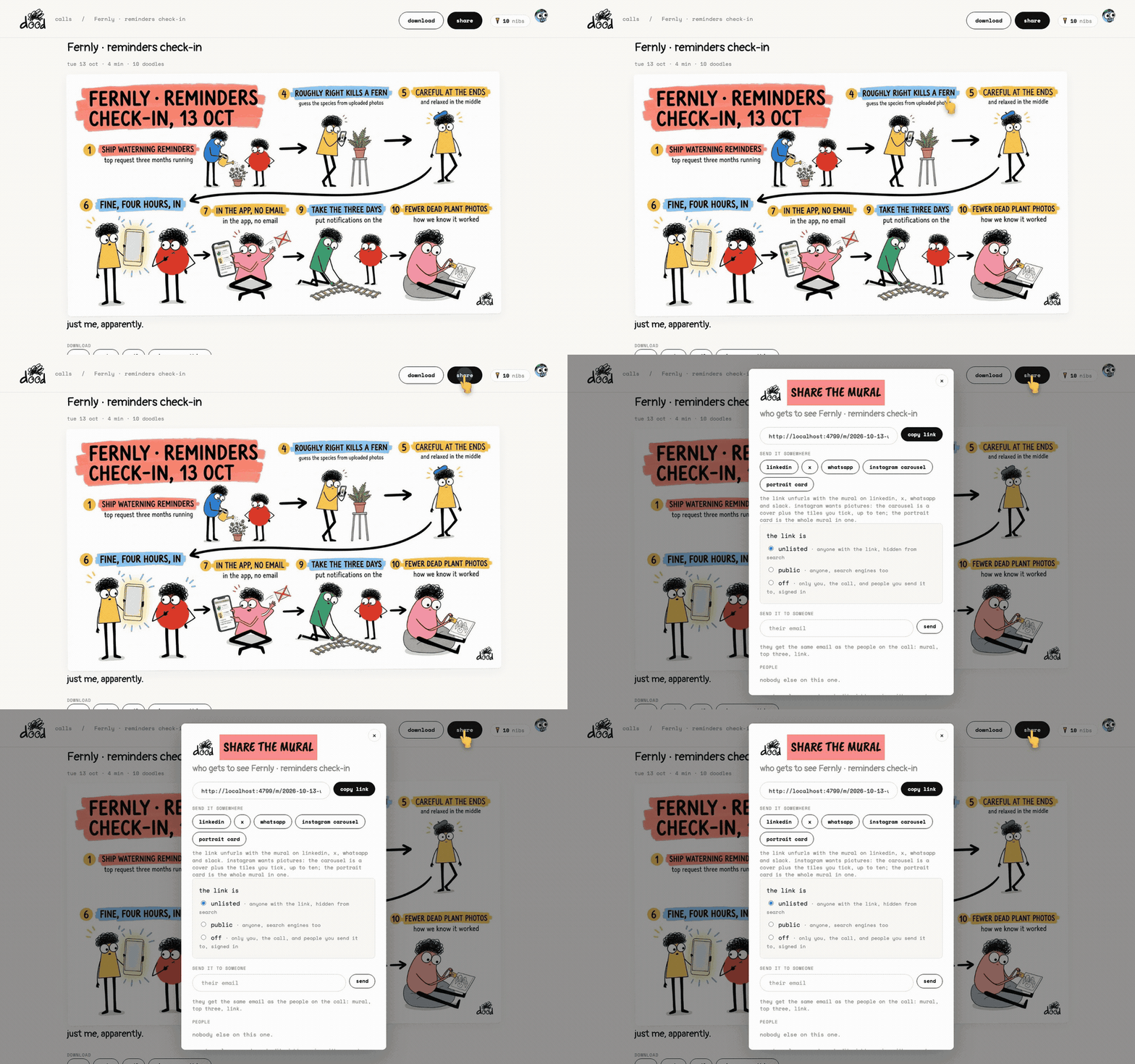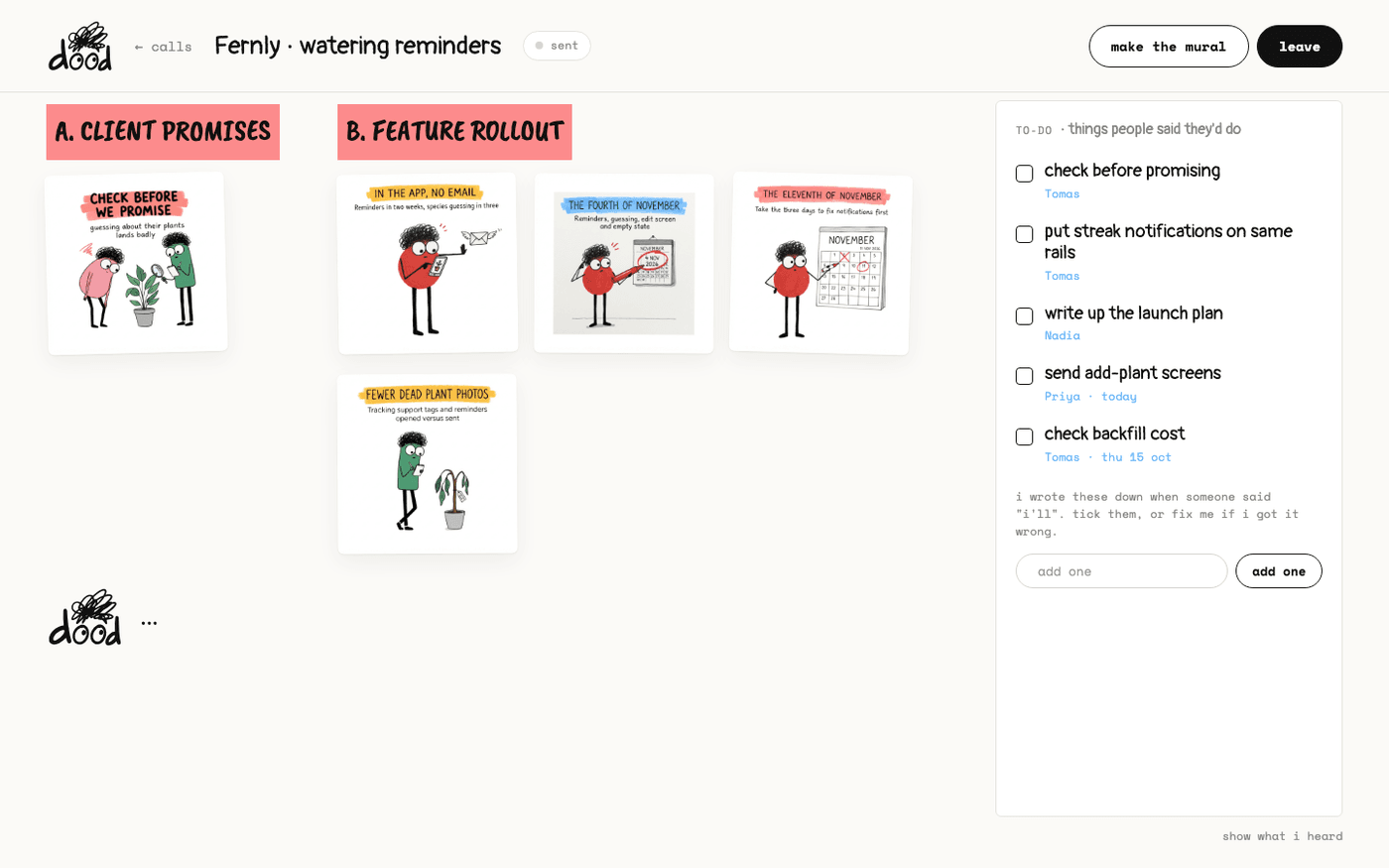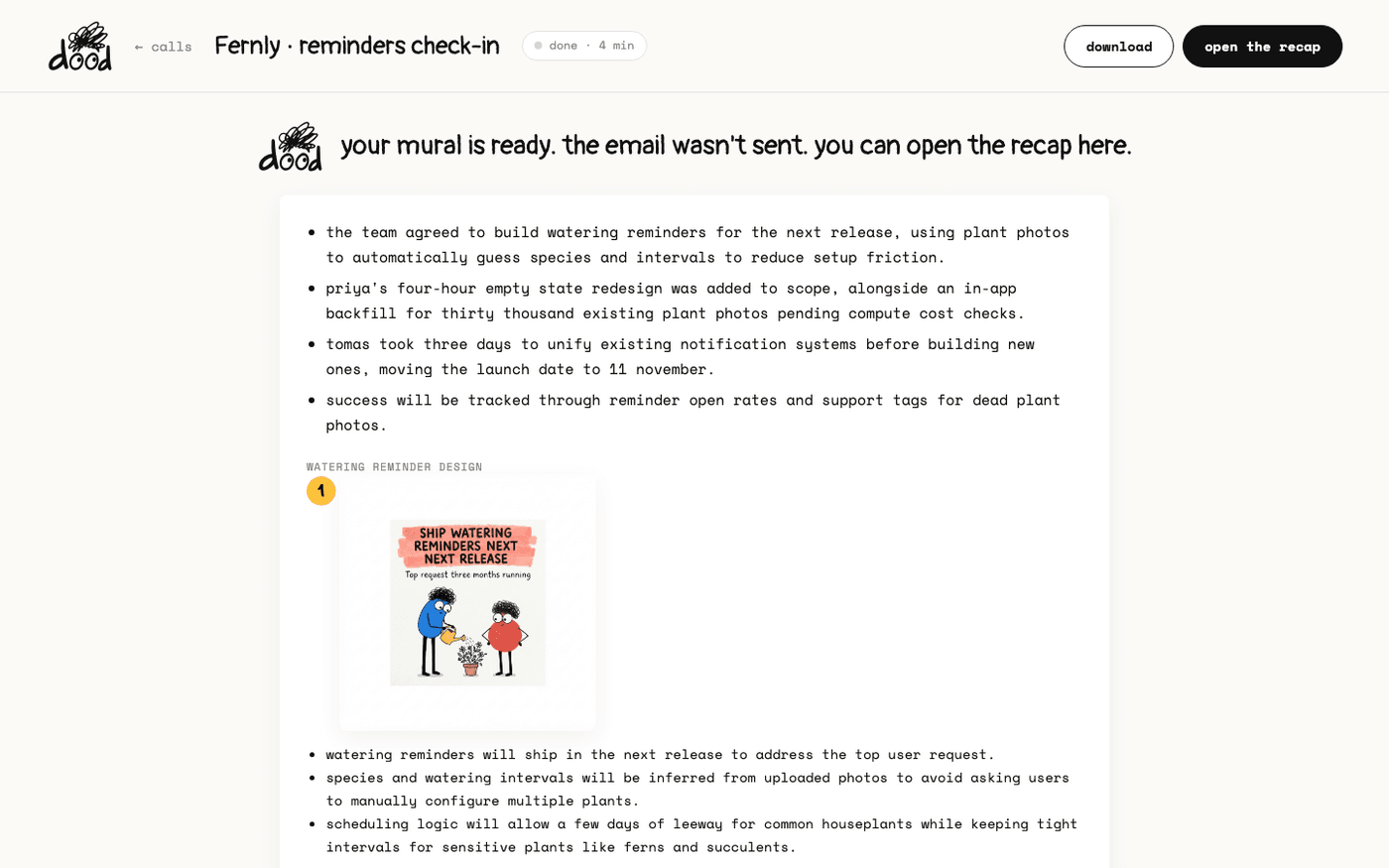
In short: The call page turns into the finished-call page. Press "open the recap". Download with "png", "pptx", "pdf" or "zip · everything".
The recap is in two places. The email goes to everyone who was on the call and had an address. The recap page is yours, with everything in it, and the link you share.
The finished-call page
When dood leaves, the call page changes. His line reads "your mural is ready. email sent. it may take a moment to arrive."
- The topic recap comes first: a few bullets on what the meeting was for, then each topic with the one doodle that stands for it and its takeaways.
- A yellow pill, "all 10 doodles", opens the full set.
- The mural follows, with "download png" and "open the recap" under it.
The email
dood sends one email when the call ends, subject "your meeting but doodled", to everyone on the call who had an address. He never sends reminders.
- One line names the topics, then each topic has the doodle that carries it and a bullet or two of what was said.
- A decisions card appears when the meeting reached three or more.
- To-dos are listed with names.
- The mural sits across the top on meetings of ten doodles or more.
Your own copy carries a link to the transcript. Everyone else gets the same email without it.
The recap page
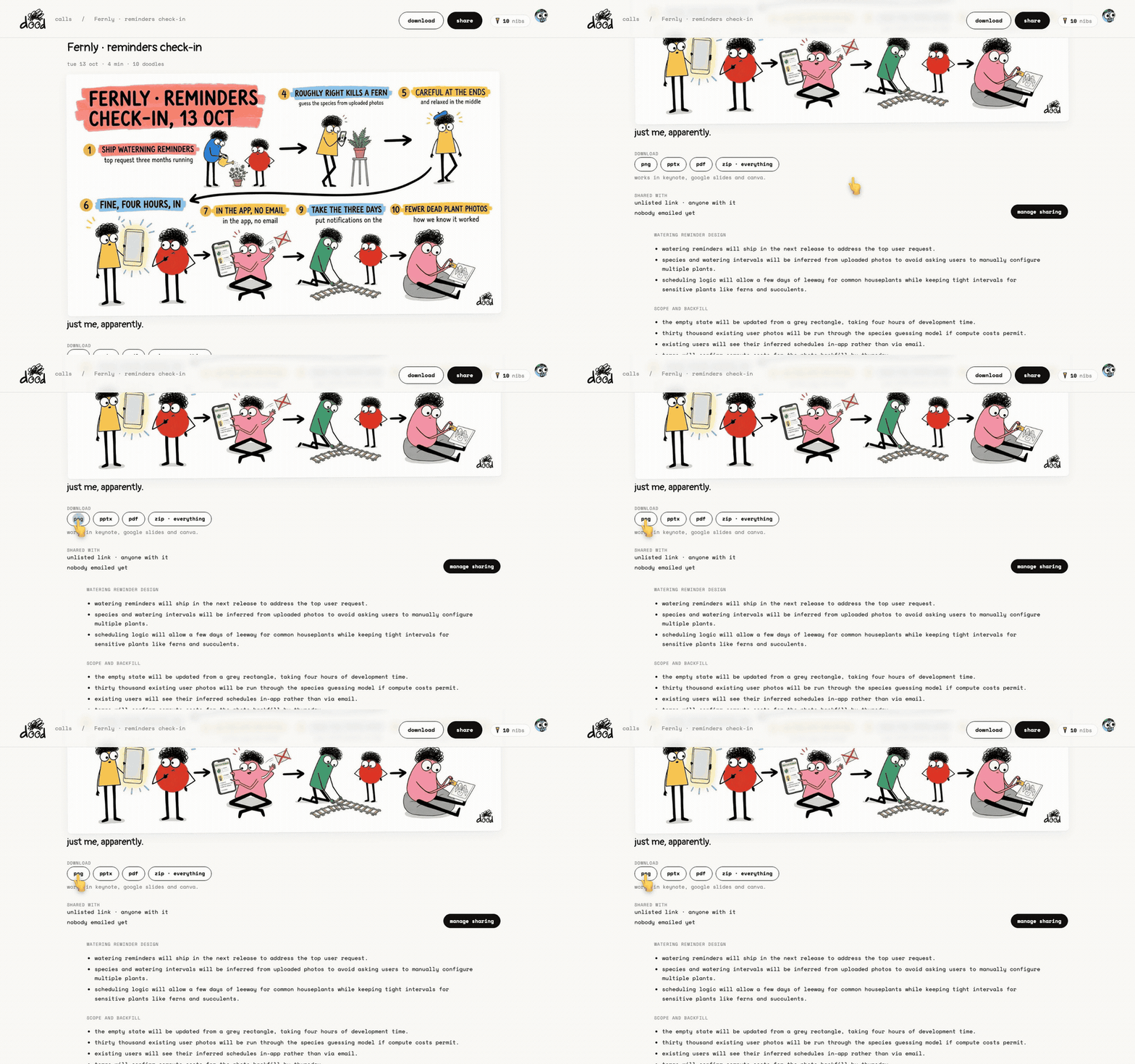
Press "open the recap". The page opens with the title, the date and length, and the mural across the top.
- On a long call the mural is one long wall. The note under it reads "scroll sideways, it's one long wall."
- Click the title to rename the meeting. dood asks "call it what?".
- The people line under the mural lists who was on the call, "and me."
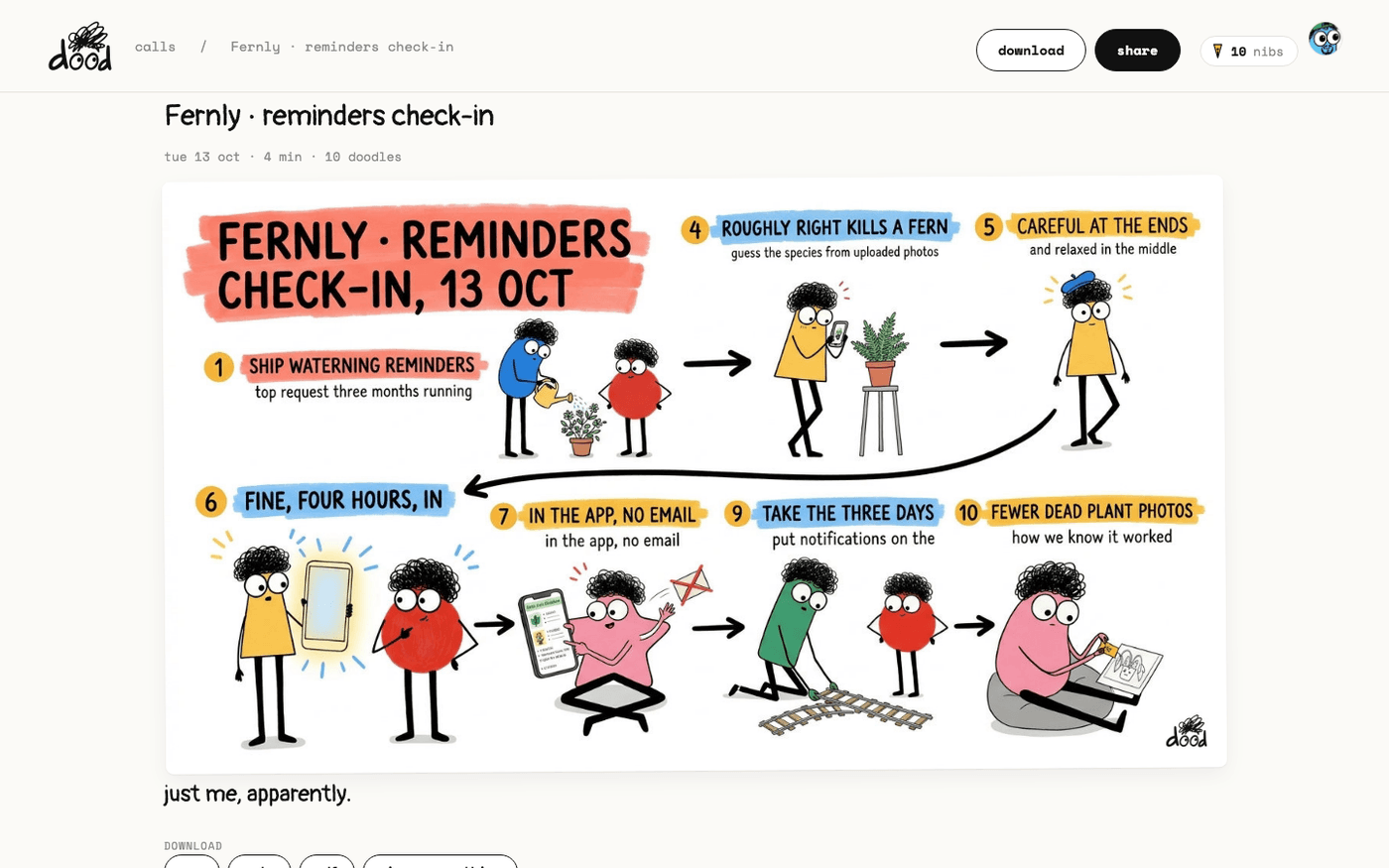
Download it
Under the people line, four buttons:
- "png": the mural as one picture.
- "pptx": a deck with one slide per doodle and the mural as the cover. It opens in Keynote, Google Slides and Canva.
- "pdf": the mural, then every doodle one to a page.
- "zip · everything": the mural, every doodle, the transcript, the to-dos and the share cards.
Anyone you share the page with can download the mural as PNG. The PDF, the deck and the ZIP are yours only.
Topics, to-dos and the words
Below the downloads the page keeps what was said.
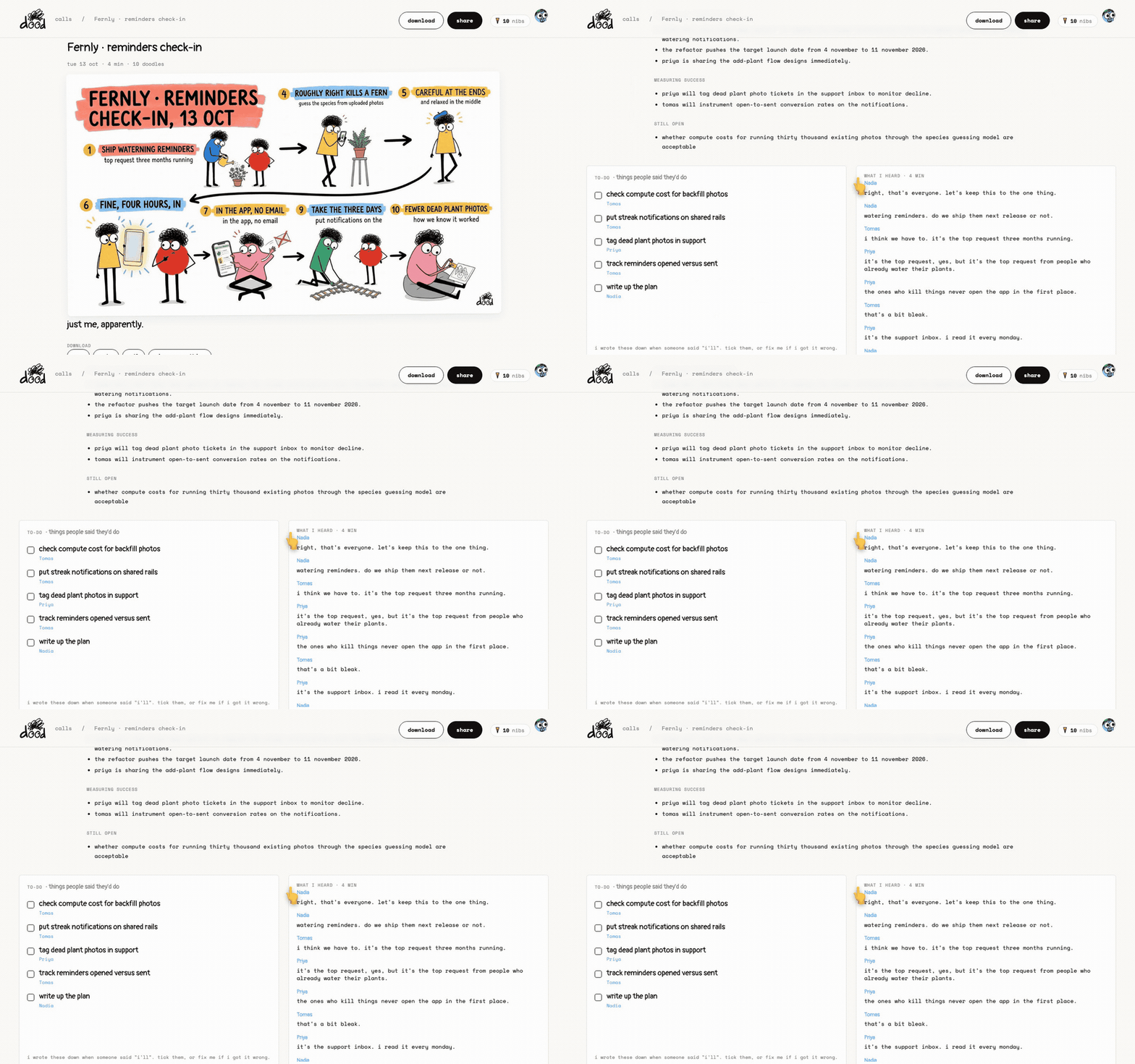
- Each topic has a heading and its takeaways as bullets. A "still open" list collects the questions nobody answered.
- The to-do list is the one from the call. Tick items, or type one in "add one".
- The "what i heard" panel shows the transcript by speaker. Press "show all 75 lines" to see every line.
Only you see the transcript panel.
Your call story
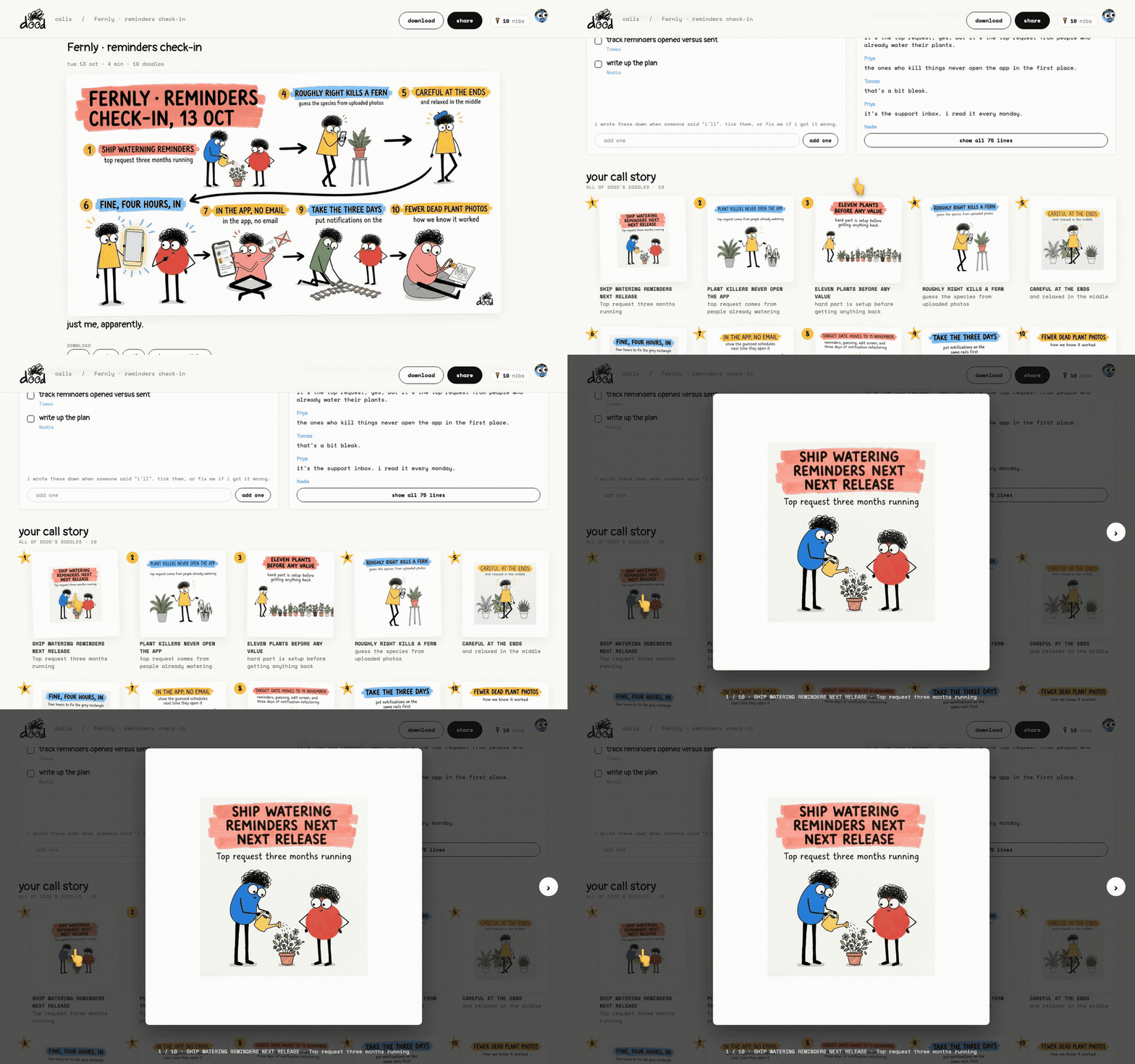
At the bottom, "your call story" lists every doodle in order with its headline and line. A star badge instead of a number marks one dood picked as a highlight.
- Click any doodle to see it big.
- Use the arrows, or the left and right keys, to move through them.
- Press escape to close.
To delete the meeting, press "delete this meeting" at the very bottom, then press it again when it asks "sure?". The mural, the doodles and the transcript go with it.
Someone on the call had no email
If dood heard a name but had no address for it, the finished-call page shows "send this to the people on the call?" with that name and an email field. Type the address and press "send it". They get the same email as everyone else.
A meeting with fewer than three highlights sends every doodle in the email instead. A meeting that somehow has no mural shows "this one never got its wall" on the recap page with a "go on then" button. It is free and takes a minute.
Last verified 13 October 2026