How to use dood
doodskool
Recently updated
Admitting him from the Zoom waiting room and the Teams lobby, from a real call.
Put the doodles on everyone's screenSpotlighting dood's tile is its own walkthrough now, with Zoom and Microsoft Teams recorded end to end.
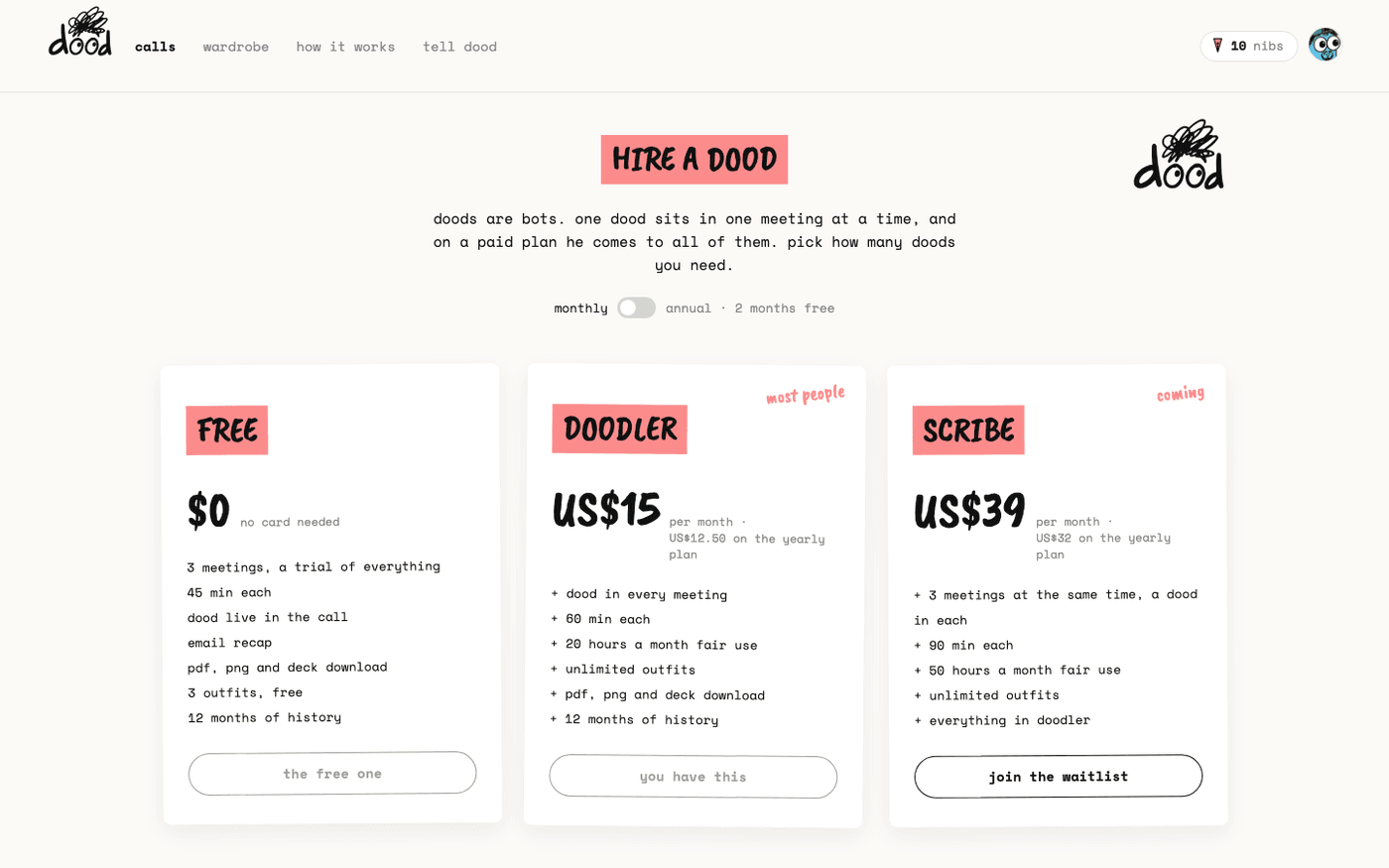
Seats for your teamAdd a teammate from your plan page. They get their own dood, their own hours and the shared wardrobe.
Getting started
2 walkthroughs
 Getting started
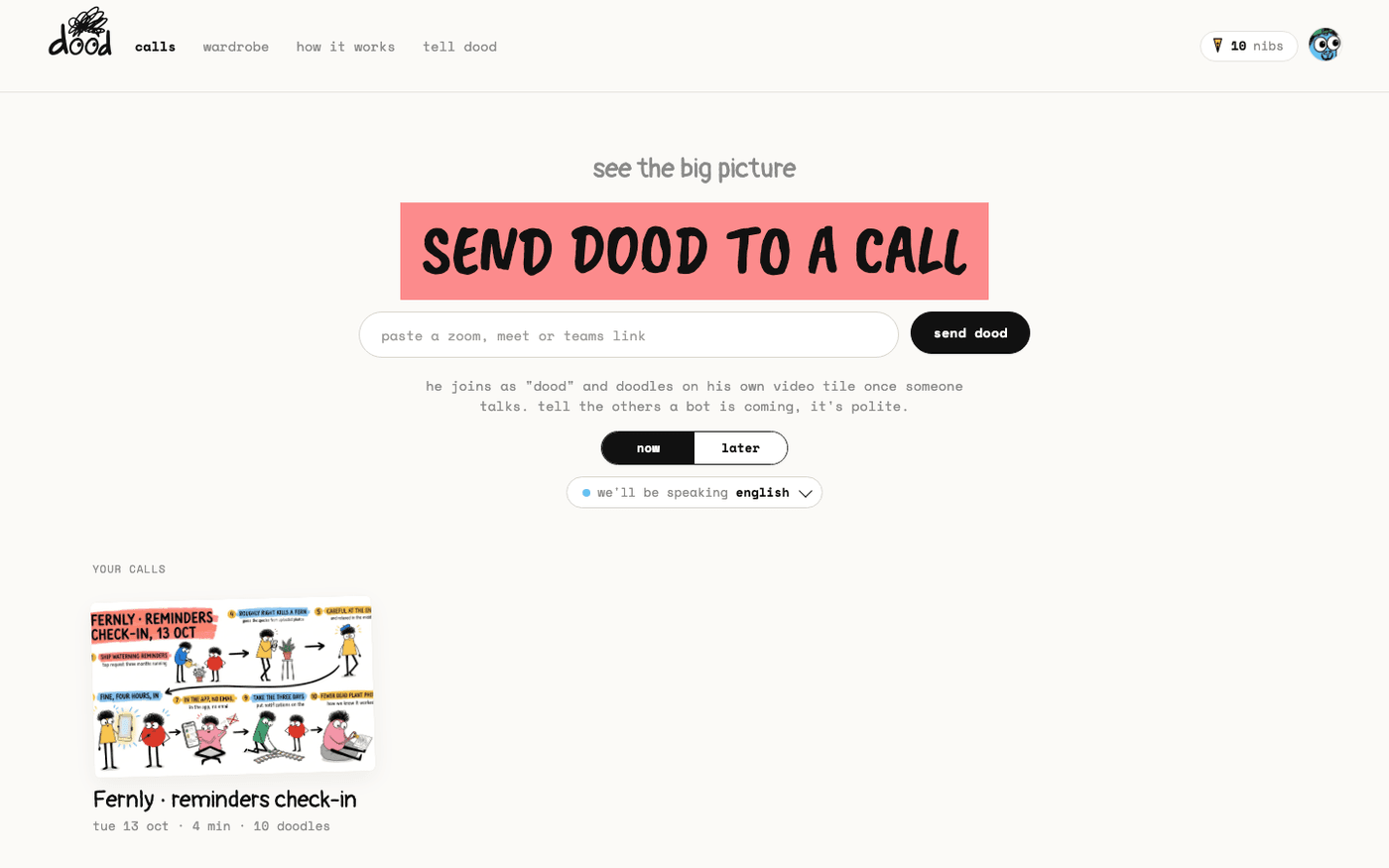
Send dood to a call
Paste a Zoom, Google Meet or Microsoft Teams link and dood joins the call now, or at a time you pick.
 Getting started
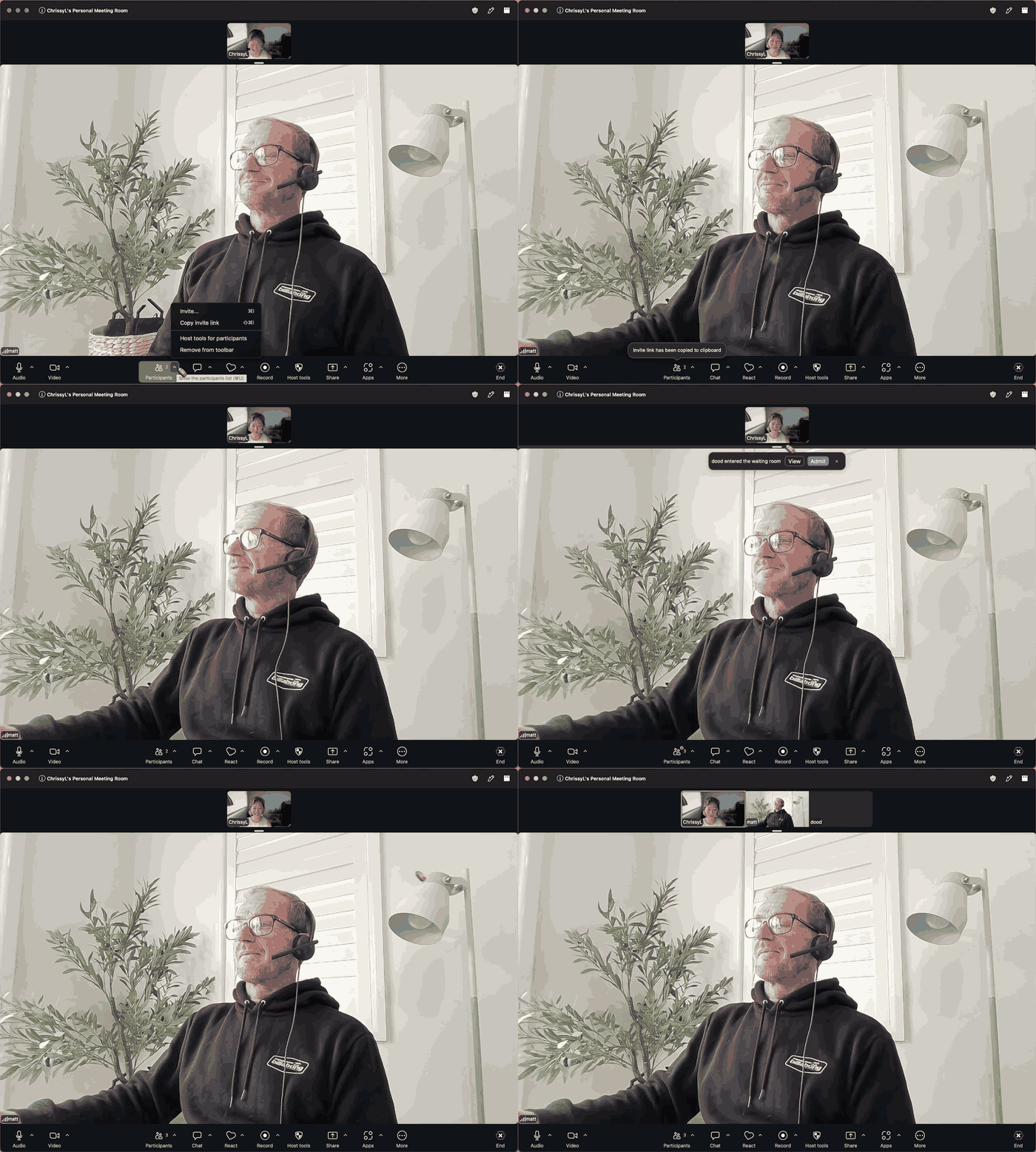
Let dood into Zoom, Google Meet and Microsoft Teams
dood joins as a guest and knocks. Admit him once and he is in for the whole call.
In the call
2 walkthroughs
 In the call
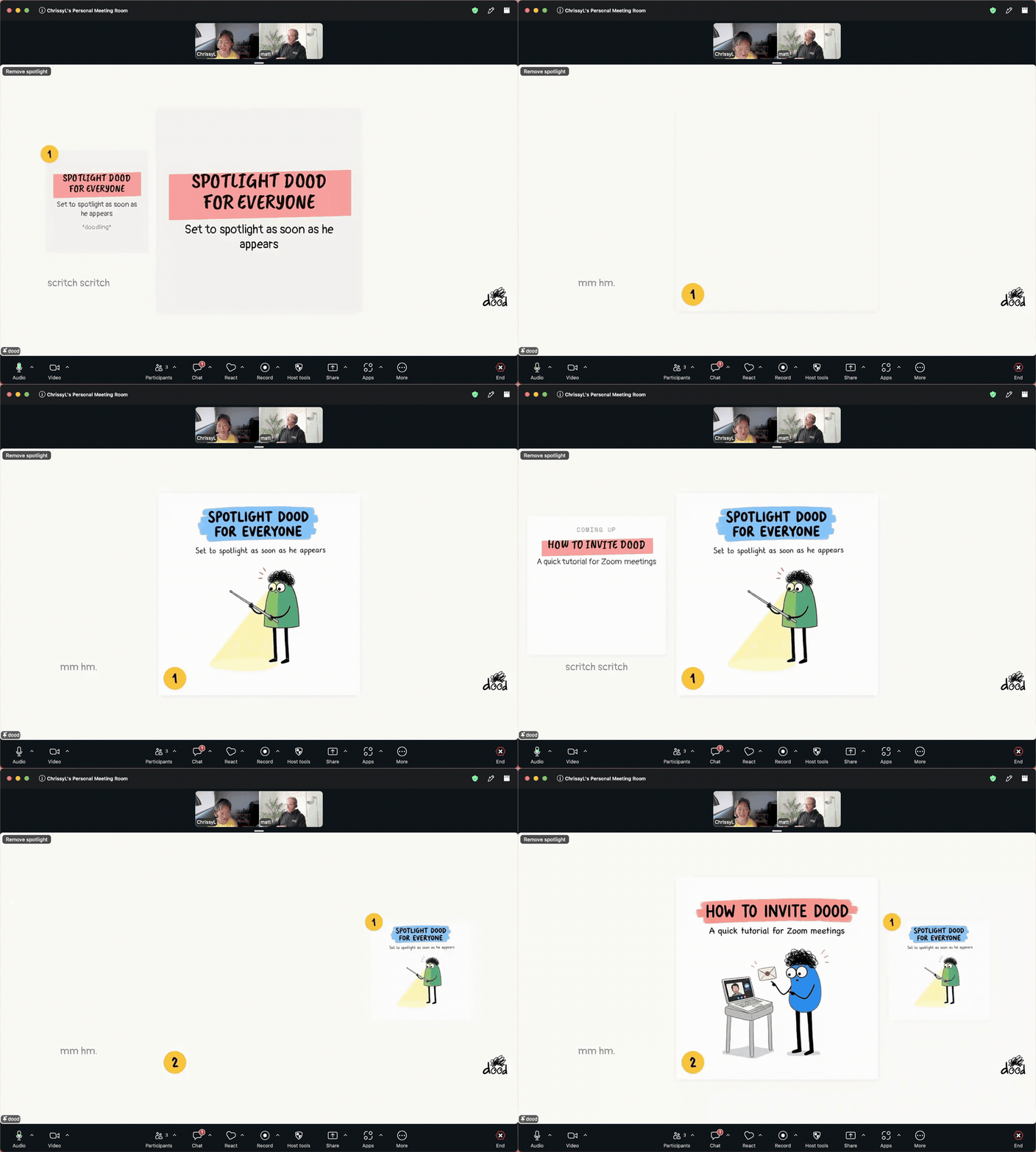
Put the doodles on everyone's screen
Spotlight dood's tile and the whole meeting watches each doodle arrive.
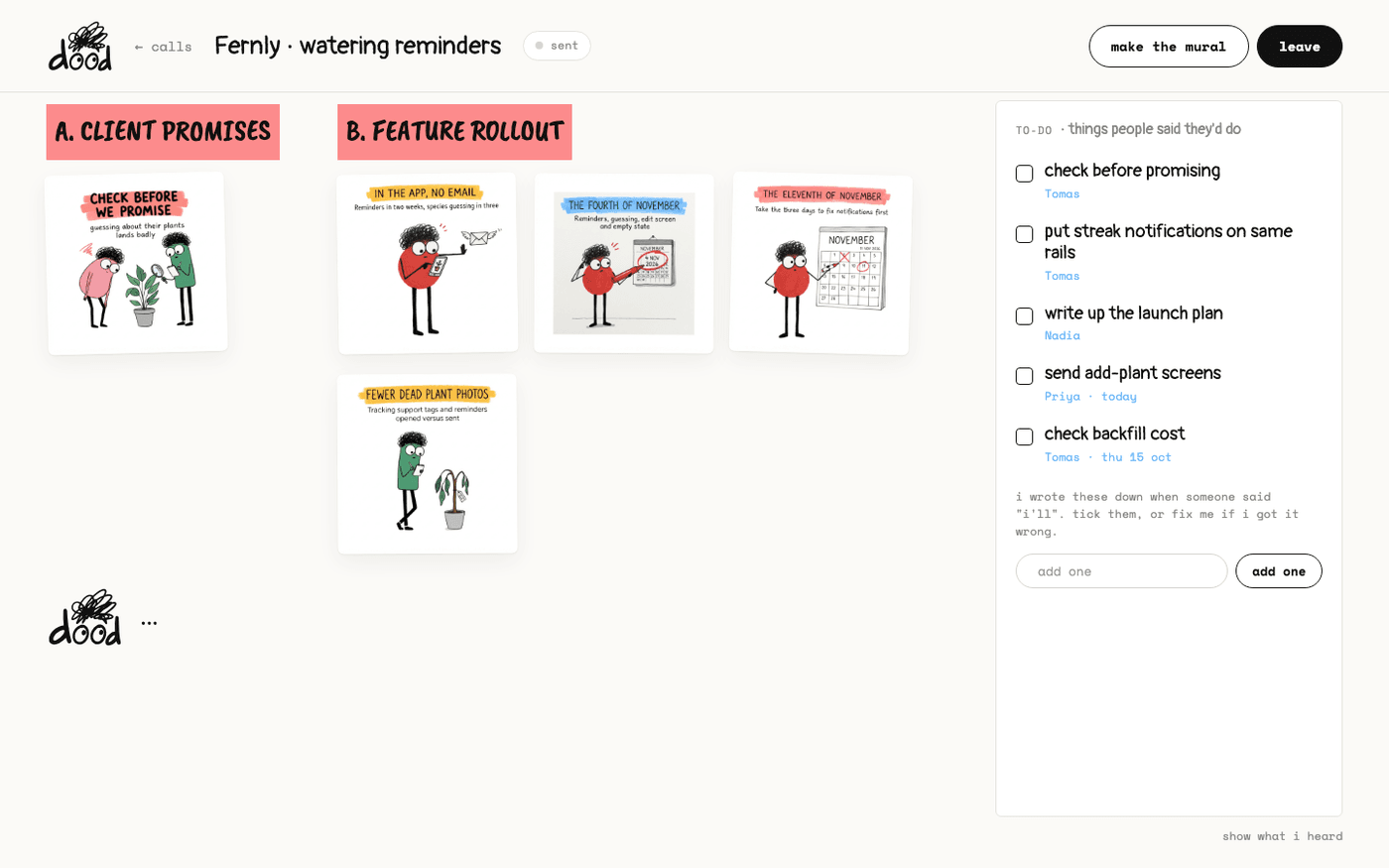 In the call
Watch the doodles land
The call page shows every doodle as it arrives, grouped by topic, with the to-do list dood is writing and the words he heard.
After the call
3 walkthroughs
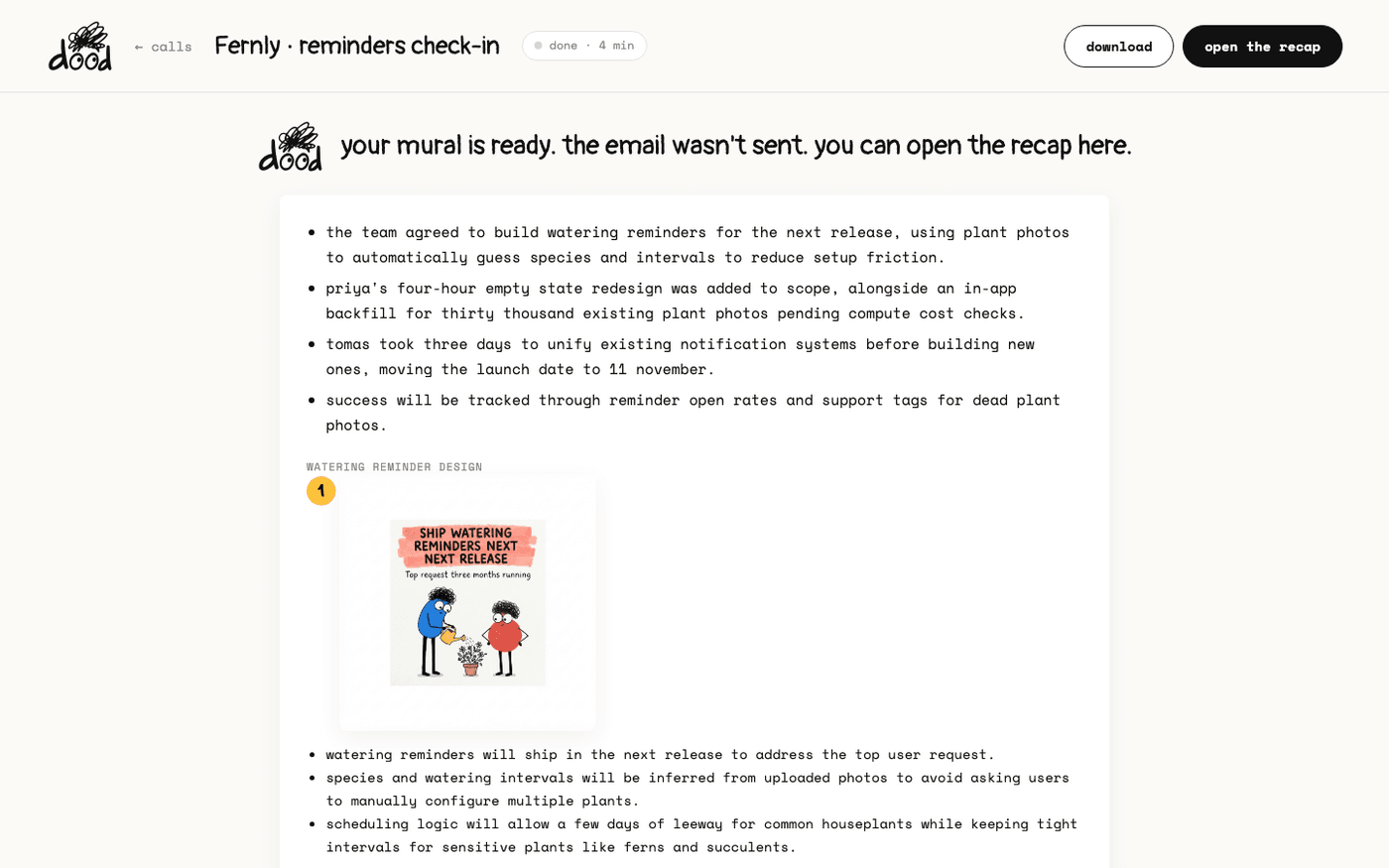 After the call
Open the recap
When the call ends, dood emails everyone on it, and the recap page keeps the mural, every doodle, the to-dos and the transcript.
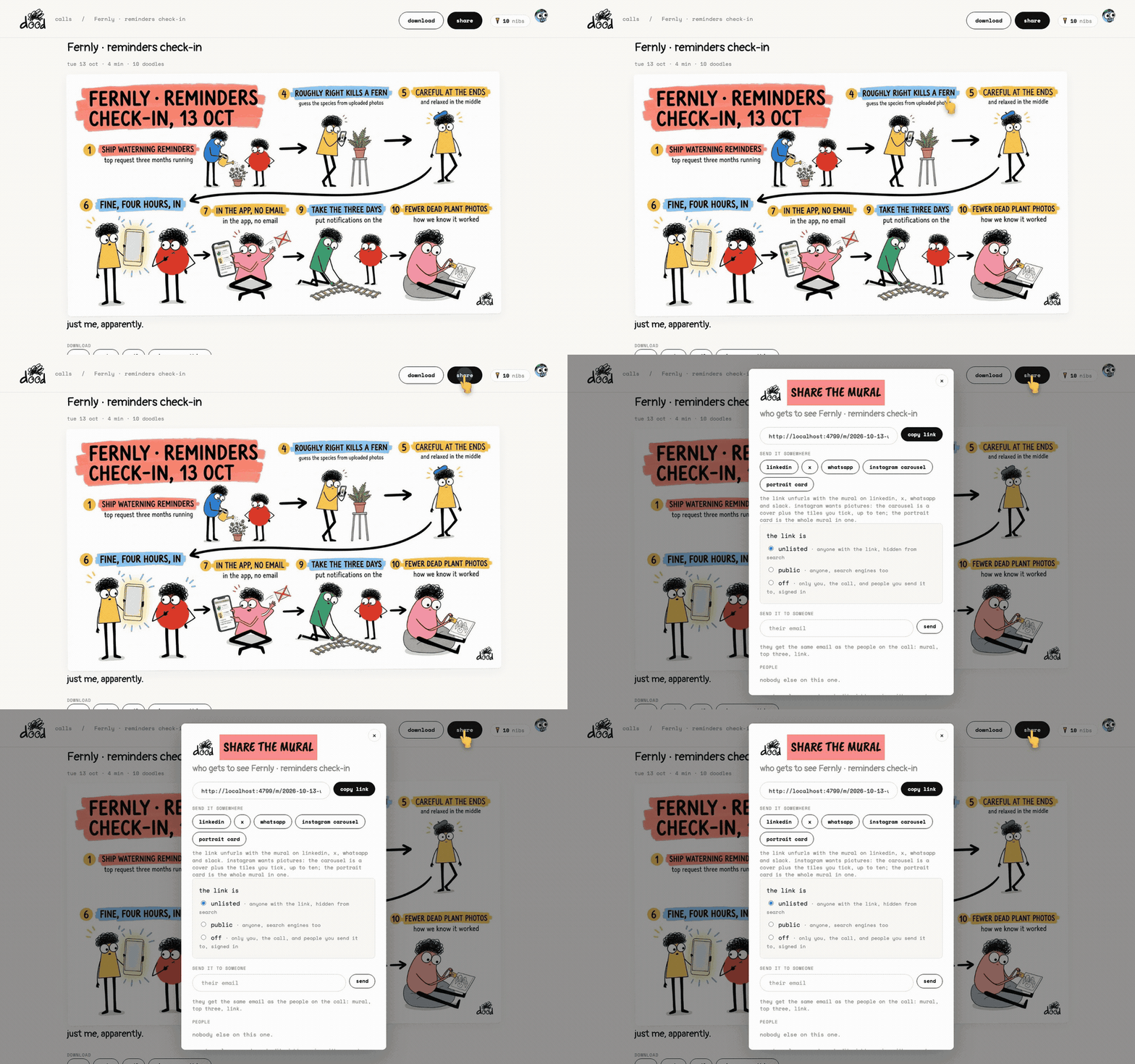 After the call
Share a meeting
Send the recap to anyone with a link, post it, email it on, or keep it to yourself. The transcript always stays with you.
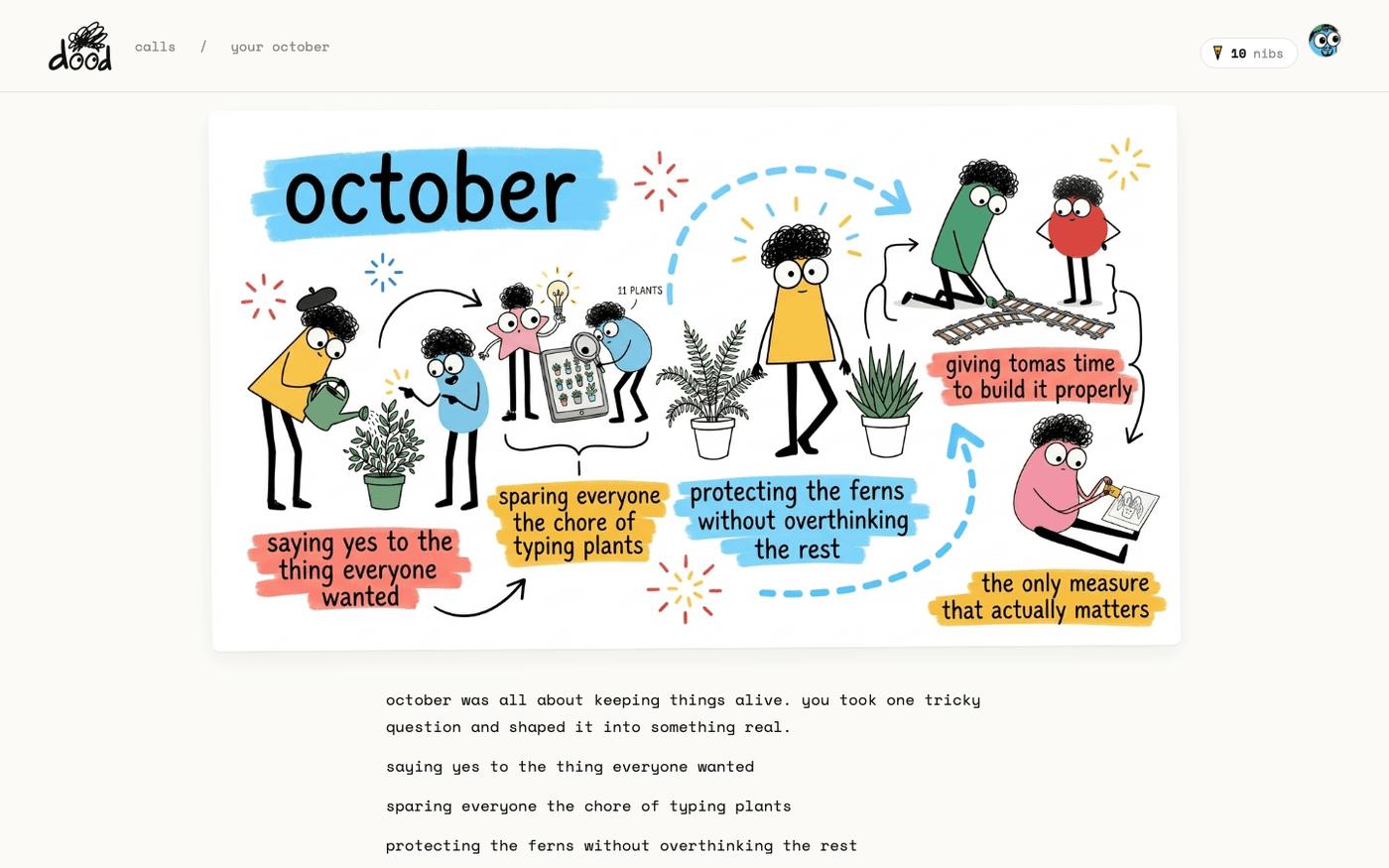 After the call
Your monthly letter
At the end of each month dood writes to you about the month's meetings, with one mural of the doodles he picked out.
The wardrobe
2 walkthroughs
 The wardrobe
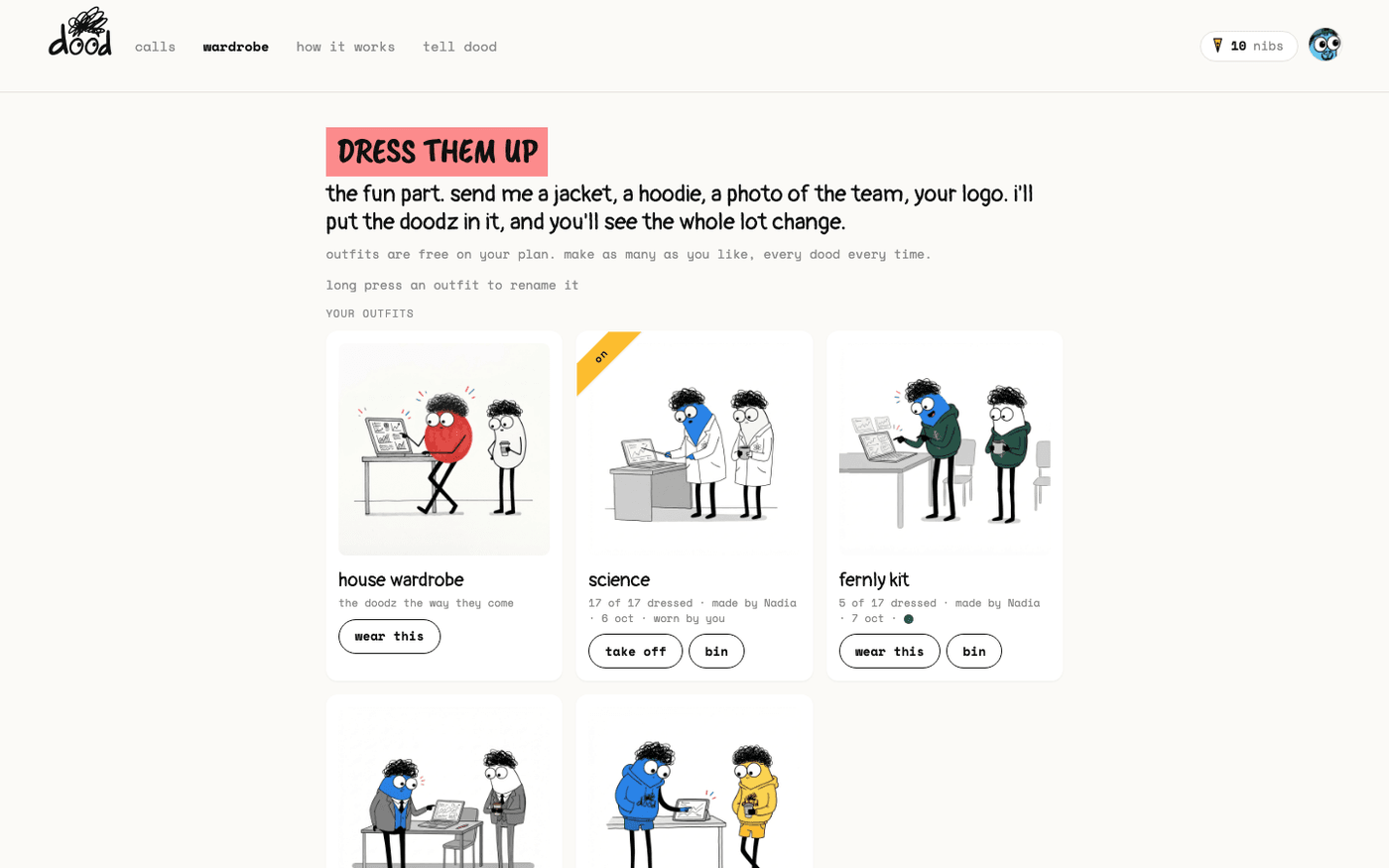
Dress the doodz
Put dood and the sixteen doodz in any outfit: a hoodie, lab coats, your team kit. Three outfits free, as many as you like on a paid plan.
 The wardrobe
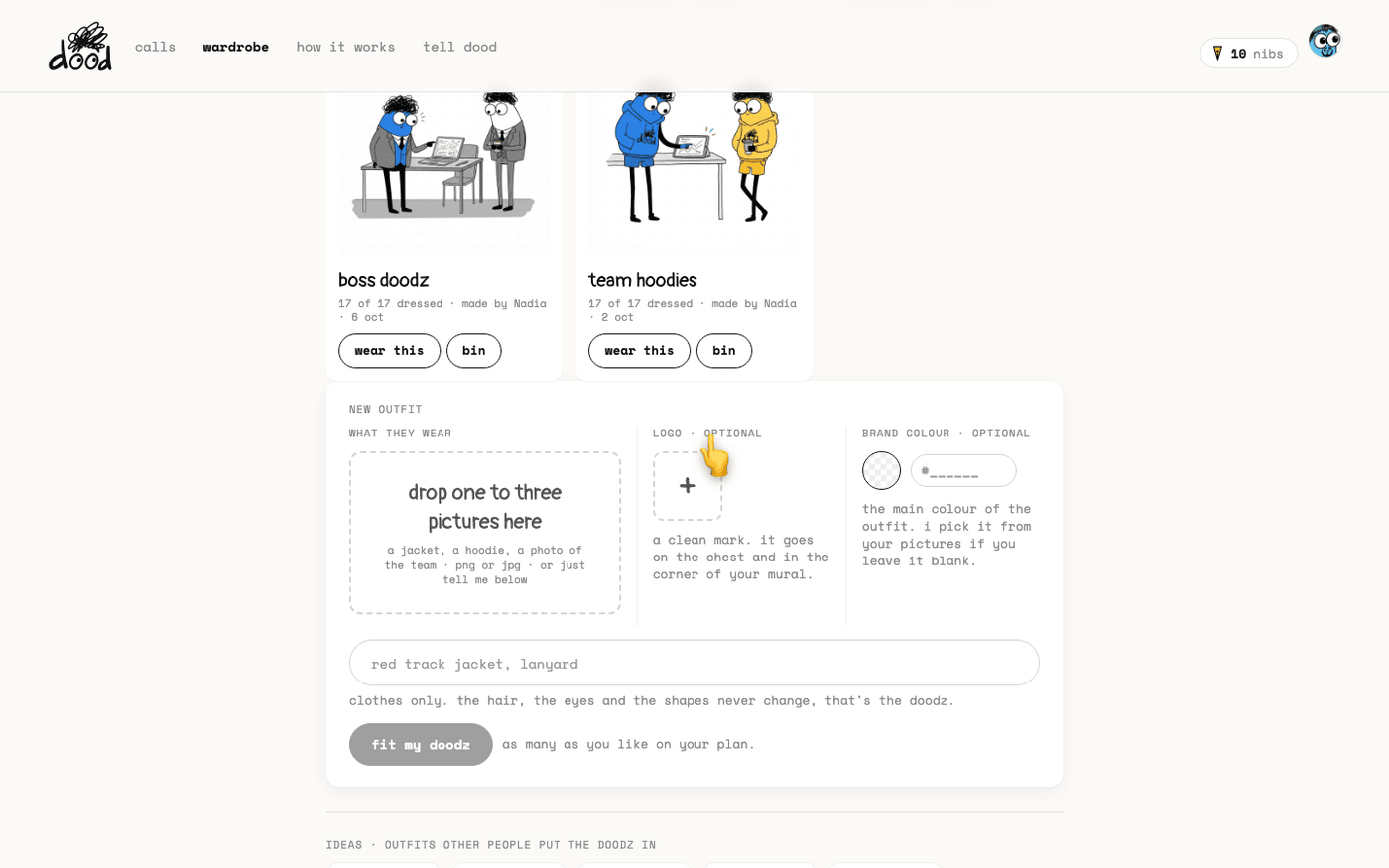
Your logo and colours on the doodz
Add a PNG logo and a brand colour to an outfit and all the doodz wear your kit, in every doodle and in the corner of every mural.
Your plan
1 walkthrough