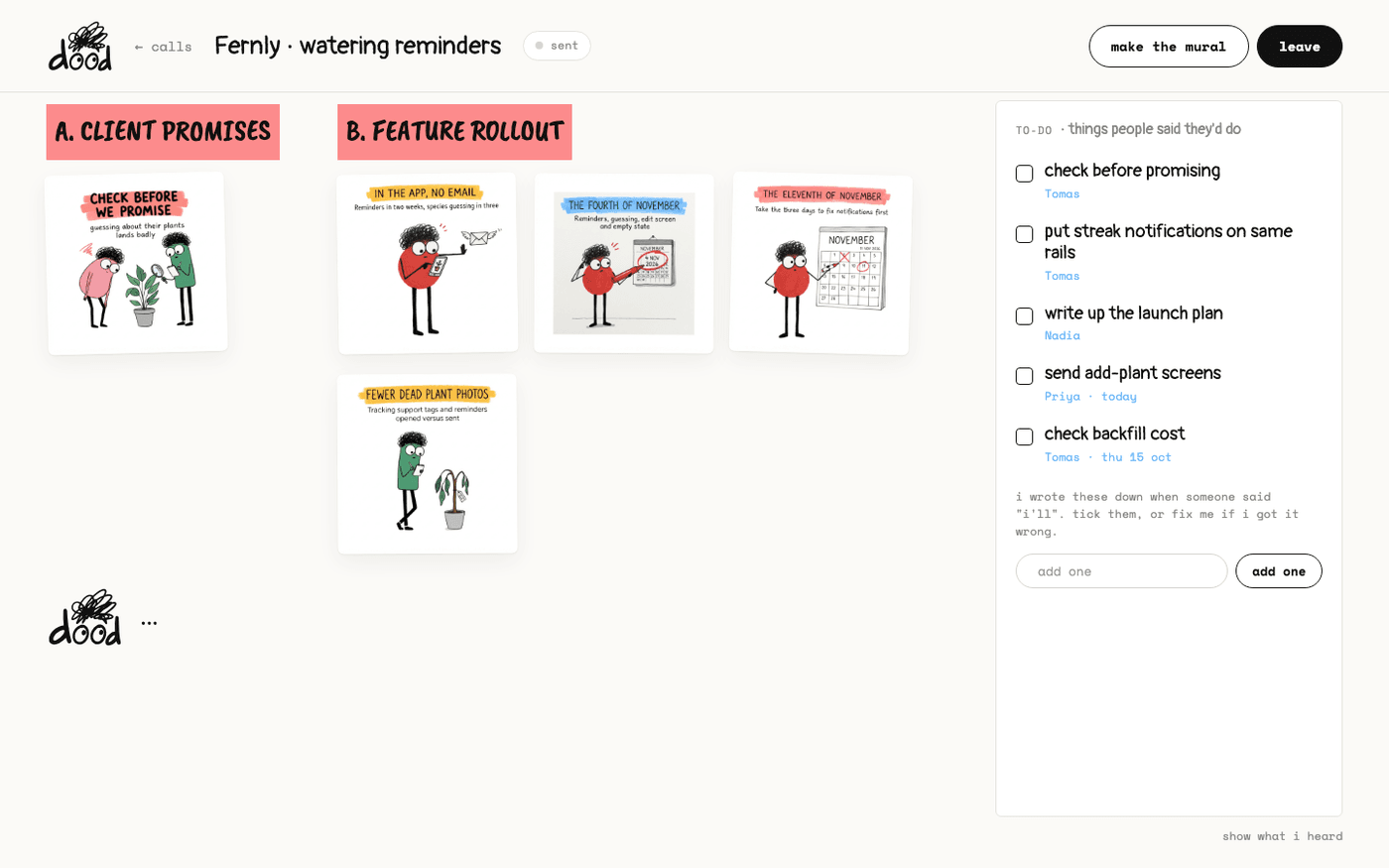
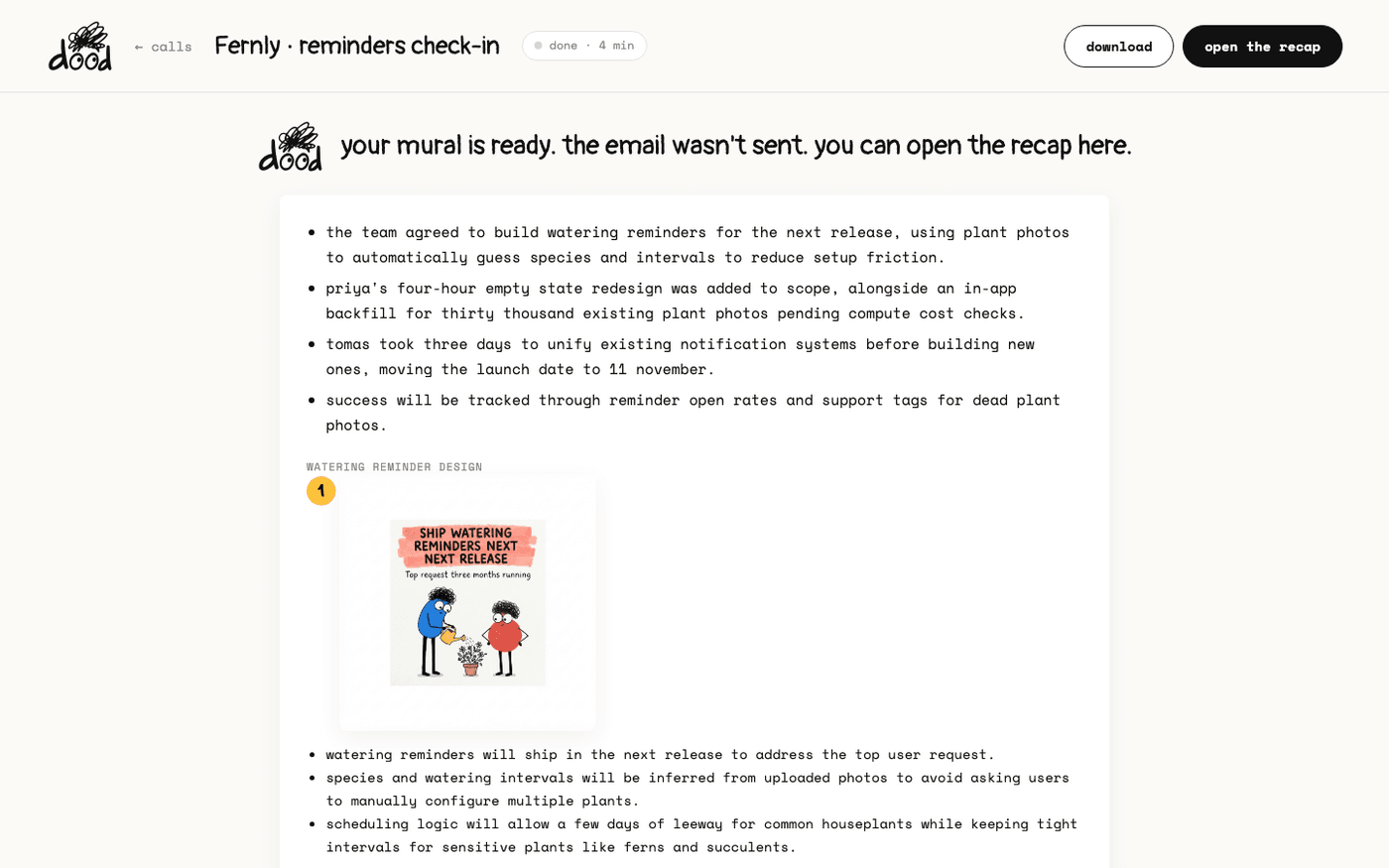
In short: Spotlight dood's tile in Zoom and Microsoft Teams. Pin it in Google Meet.
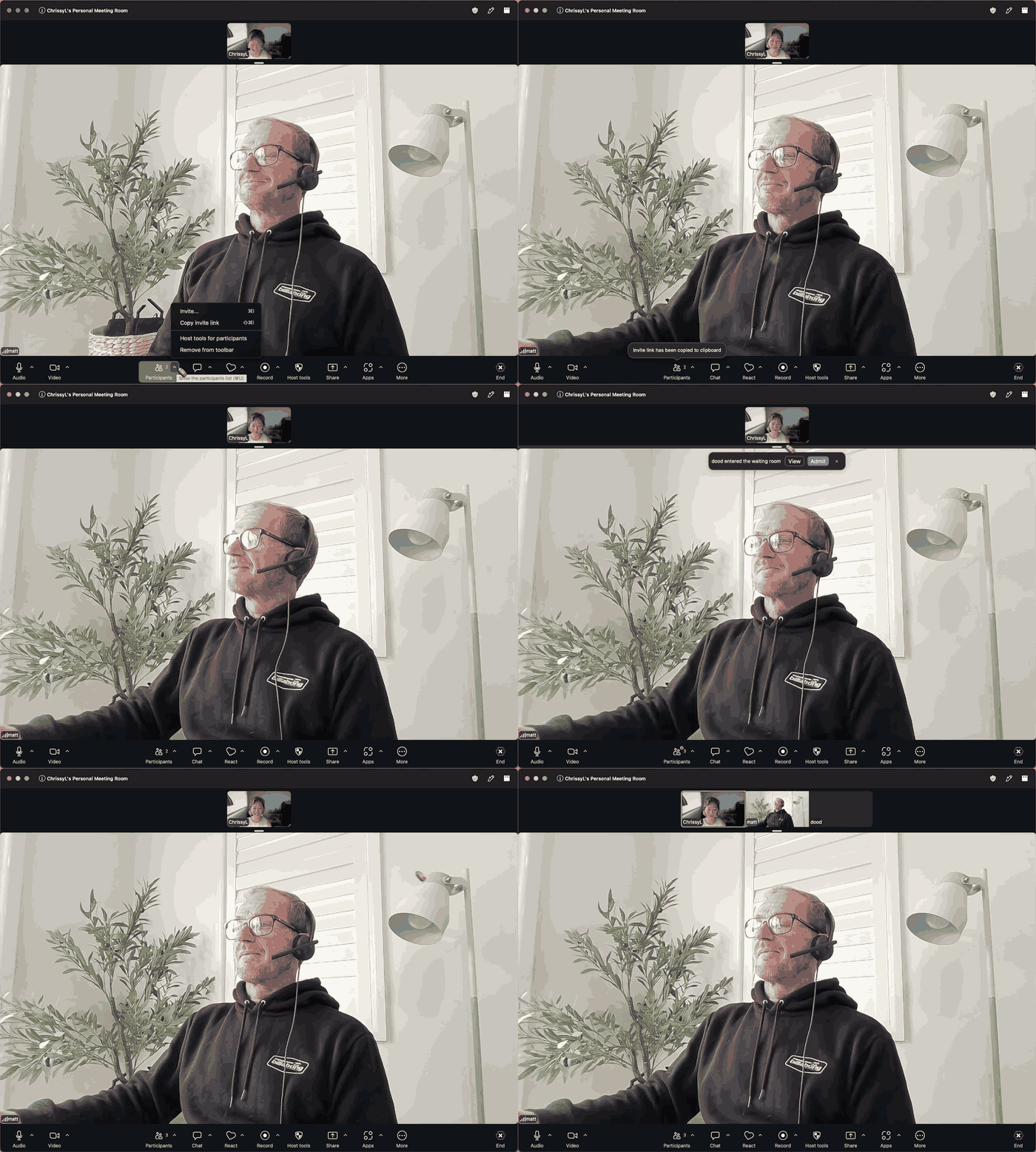
dood doodles on his own video tile, so the doodles are already in the call. In a grid of faces that tile is small, and people miss them.
Spotlight it and it fills the screen for everyone, which is when a meeting starts watching the doodles arrive.
His tile, and what is on it
The tile is dood's own camera, so whatever is on it is on it for everyone.
- The latest doodle sits in the middle, the two before it on the right, numbered in the order they happened.
- A "coming up" card on the left carries the headline of the one he is doodling now.
- Google Meet crops the tile to the middle picture.
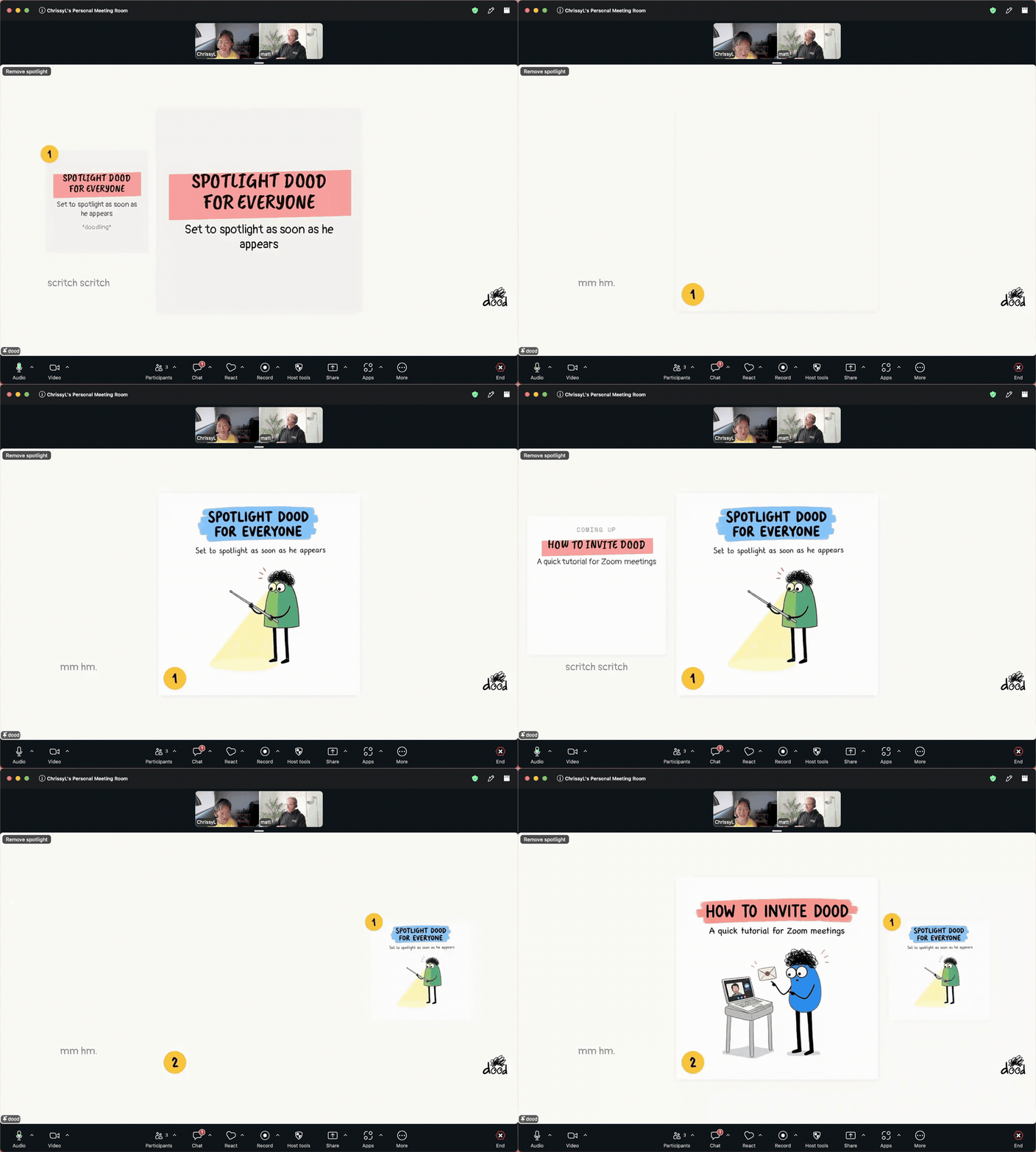
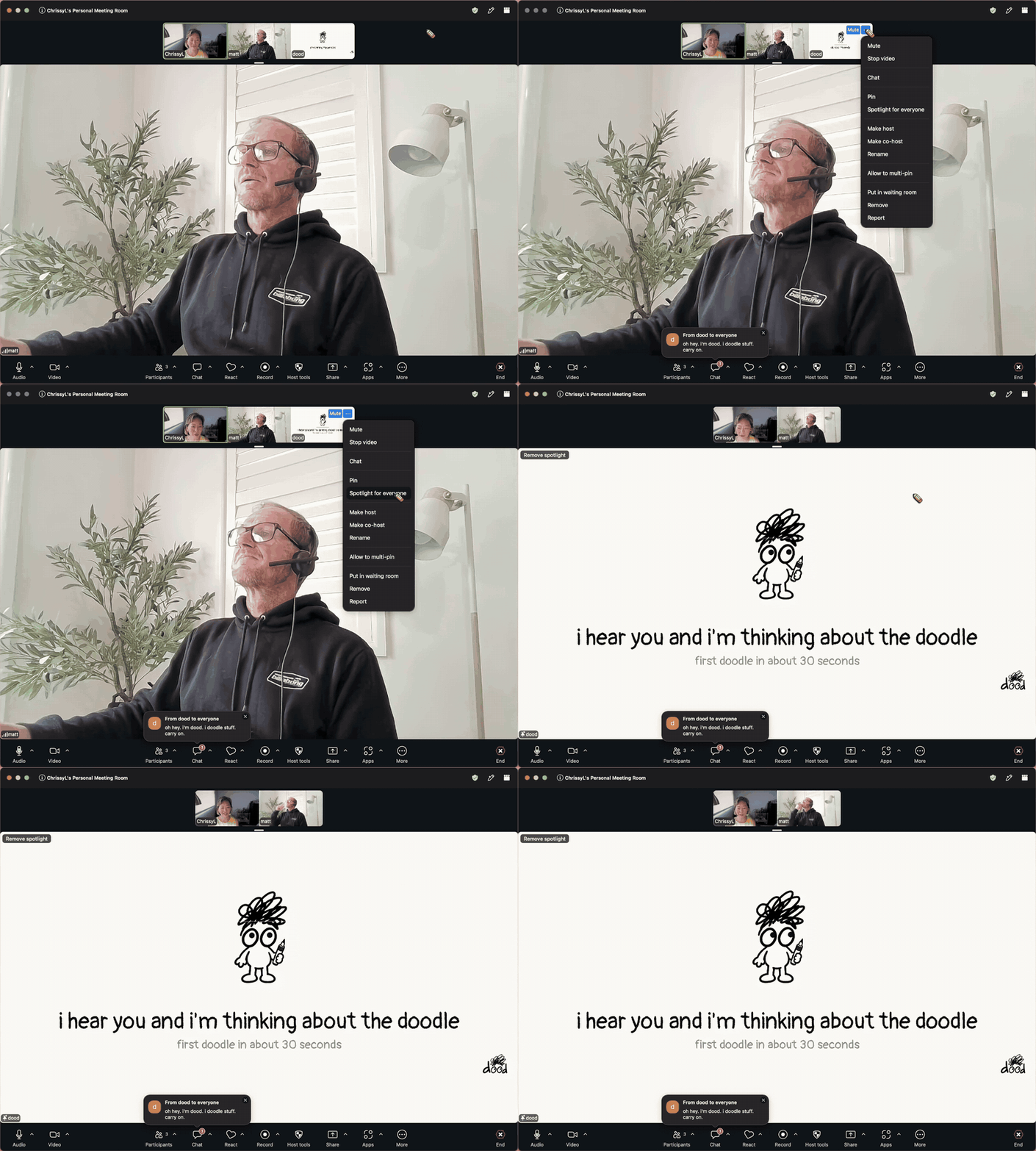
Zoom: spotlight for everyone
Hover over dood's tile, open its menu with the three dots and choose Spotlight for everyone.
- His tile fills the screen and a Remove spotlight tag sits at the top left while it lasts.
- Only the host or a co-host can spotlight.
- Anyone can choose Pin instead, for their own screen only.
Google Meet: pin to your main screen
Google Meet has no spotlight, so each person pins dood for themselves.
- Hover over his tile and press the pin icon, "Pin to your main screen".
- Meet shows the middle of his tile, so the latest doodle fills it.
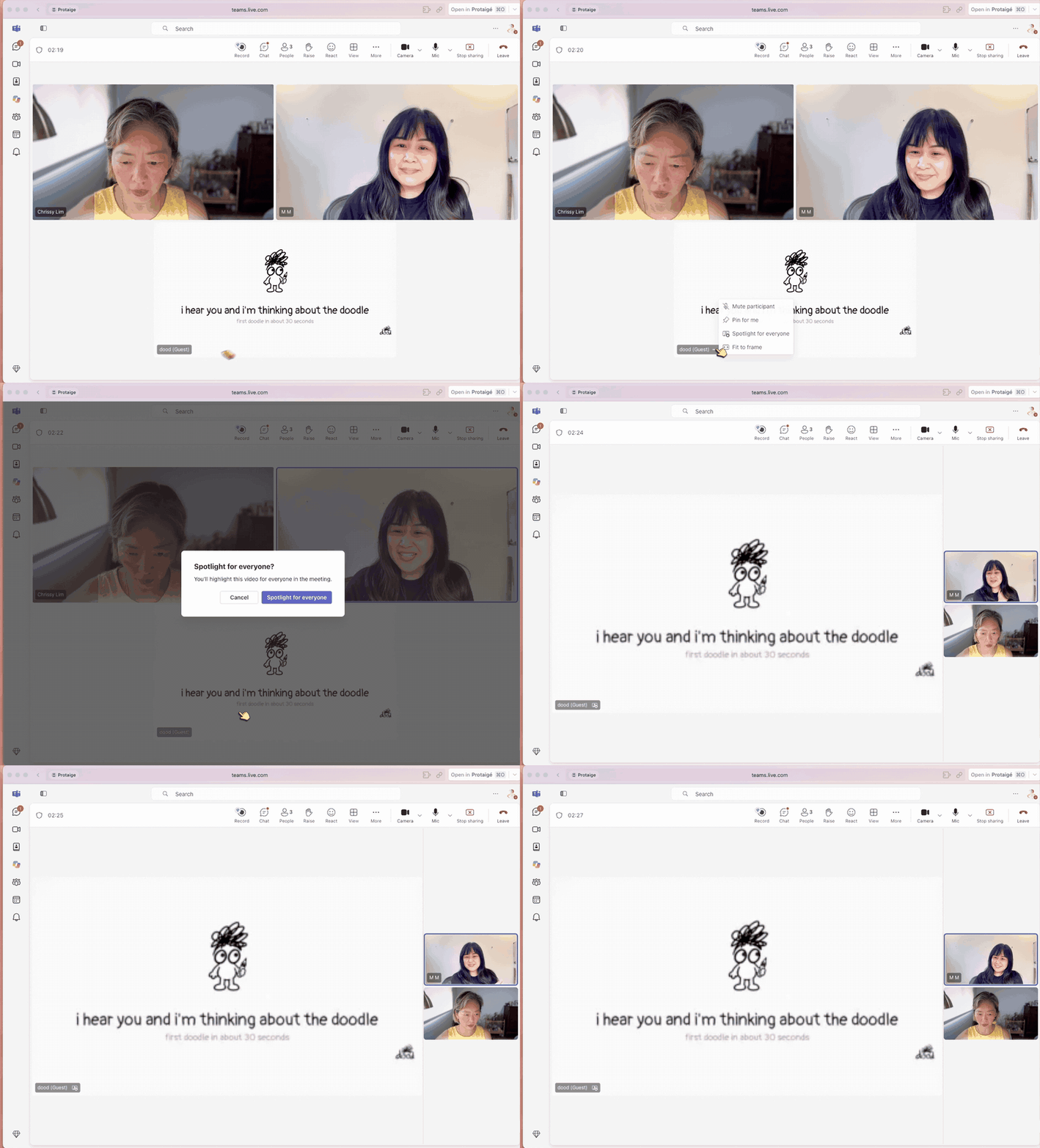
Microsoft Teams: spotlight for everyone
Open dood's tile menu and choose Spotlight for everyone. Teams asks "Spotlight for everyone?" and you press Spotlight for everyone to confirm.
- His tile fills the screen for the whole meeting.
- Pin for me does the same on your own screen only, and anyone can use it.
A pin is yours alone and anyone can set one. A spotlight is for everyone and only the host or a co-host can set it. If you cannot spotlight, ask the host, or pin it and tell the others to do the same.